If you are still having issues,
there are a couple of other troubleshooting tips. Pay attention to what
is slow in your network. Is it internally slow—transferring files among
computers, for example—or is it browsing the Internet that's slow? Is
streaming from one device to another painfully slow? Look into updating
firmware on all affected devices, or if possible adding a more powerful
USB wireless adapter to a slow laptop or notebook, if they are one of
the culprits.
If Internet access is slow, check to make sure you are getting near the
bandwidth promised by your ISP. Use multiple speed test tools such as speedtest.net, speakeasy.net, and AT&T's speedtest
to get different results to compare. Keep track of bandwidth at
different times of the day and night as well as weekdays and weekends.
Contact your ISP for further troubleshooting if you are not seeing the
bandwidth you are supposed to receive from your ISP.
Internet Connection Tips; My network is just so... slow!
Showing posts with label Internet Connection Tips. Show all posts
Showing posts with label Internet Connection Tips. Show all posts
I can't stream multimedia files from my laptop to my phone.
Quick fix: Streaming files such
as videos and music from one device on a network to another is one of
the most common networking tasks home users want to do. Because of
standard in wireless technology, it's easy to stream files from
computers, set-top boxes and multimedia players to clients such as
smartphones and tablets.
 If you are having problems streaming, there are two settings you want to
make sure are enabled on the router: UPnP (Universal Plug and Play) and
DLNA (Digital Living Network Alliance). UPnP allows networked devices
to discover one another. Newer routers and devices also use DLNA for
easy streaming between devices. Both can be enabled through a router's
interface, typically in the router's management or advanced features
page.
If you are having problems streaming, there are two settings you want to
make sure are enabled on the router: UPnP (Universal Plug and Play) and
DLNA (Digital Living Network Alliance). UPnP allows networked devices
to discover one another. Newer routers and devices also use DLNA for
easy streaming between devices. Both can be enabled through a router's
interface, typically in the router's management or advanced features
page.
Internet Connection Tips; I can't stream multimedia files from my laptop to my phone.
If you are having problems streaming, there are two settings you want to
make sure are enabled on the router: UPnP (Universal Plug and Play) and
DLNA (Digital Living Network Alliance). UPnP allows networked devices
to discover one another. Newer routers and devices also use DLNA for
easy streaming between devices. Both can be enabled through a router's
interface, typically in the router's management or advanced features
page. Internet Connection Tips; I can't stream multimedia files from my laptop to my phone.
My friend gave me his router, but it doesn't work on my network.
Quick fix: If you happen to
inherit a previously used router, you most likely won't be able to
connect it to your broadband connection and just start using it. The
best way to set up a previously configured router is to reset it back to
factory default (usually by pressing the reset button underneath or on
the back of the router). You can then check the router manufacturer's
website to find out the default IP address, username and password or
download any available set up software to configure the router for your
network. 
Internet Connection Tips; My friend gave me his router, but it doesn't work on my network.
Internet Connection Tips; My friend gave me his router, but it doesn't work on my network.
I can't connect my new wireless gadget to my router.
You have a router that’s been
working fine. Your laptop and your computer can connect it without any
problems. But when you get a new iPad, tablet or handheld game for the
holidays, sometimes that new device just won't connect. You know it's
not a problem with the router, so what's going on?
 Quick Fix: When a new device won't connect to a router that you know is
working the first thing you want to check is make sure there isn’t a
problem with the device. Check to make sure you can connect the device
to another network, maybe a wireless hotspot. If the problem remains,
check to make sure your device is connecting to the right wireless
signal on your router, if you have a dual-band router.
Quick Fix: When a new device won't connect to a router that you know is
working the first thing you want to check is make sure there isn’t a
problem with the device. Check to make sure you can connect the device
to another network, maybe a wireless hotspot. If the problem remains,
check to make sure your device is connecting to the right wireless
signal on your router, if you have a dual-band router.
Dual-band routers transmit signals at two bands: 2.4 GHz and 5 GHz. Some routers will use the same SSID for each band and then some devices can connect automatically to the correct band. Almost all tablets, e-readers, gaming systems, and so on can connect to the 2.4 GHz band. Some newer wireless devices can connect to 5 GHz.
Whenever I set up a router, I like to make sure I create different SSIDs for the 2.4 and 5 GHz bands. This way I can control which device connects to which band. For example, if I set up a Linksys dual-band router, I can name the 2.4 GHz band "Linksys_24" and the 5 GHz band "Linksys_5."
It's important to know at which band specific devices can connect. For instance, the iPhone 4S only supports the 2.4 GHz band. Motorola's Droid Razr, the non-LTE version, support both 2.4 and 5 GHz.
To see a listing of Wi-Fi support for the hottest wireless devices, check out The Wi-Fi You Need for the Gadgets You Want. If you don't see your device listed, or are not sure about the wireless compatibility, contact the device's manufacturer.
Internet Connection Tips; I can't connect my new wireless gadget to my router.
Quick Fix: When a new device won't connect to a router that you know is
working the first thing you want to check is make sure there isn’t a
problem with the device. Check to make sure you can connect the device
to another network, maybe a wireless hotspot. If the problem remains,
check to make sure your device is connecting to the right wireless
signal on your router, if you have a dual-band router.
Dual-band routers transmit signals at two bands: 2.4 GHz and 5 GHz. Some routers will use the same SSID for each band and then some devices can connect automatically to the correct band. Almost all tablets, e-readers, gaming systems, and so on can connect to the 2.4 GHz band. Some newer wireless devices can connect to 5 GHz.
Whenever I set up a router, I like to make sure I create different SSIDs for the 2.4 and 5 GHz bands. This way I can control which device connects to which band. For example, if I set up a Linksys dual-band router, I can name the 2.4 GHz band "Linksys_24" and the 5 GHz band "Linksys_5."
It's important to know at which band specific devices can connect. For instance, the iPhone 4S only supports the 2.4 GHz band. Motorola's Droid Razr, the non-LTE version, support both 2.4 and 5 GHz.
To see a listing of Wi-Fi support for the hottest wireless devices, check out The Wi-Fi You Need for the Gadgets You Want. If you don't see your device listed, or are not sure about the wireless compatibility, contact the device's manufacturer.
Internet Connection Tips; I can't connect my new wireless gadget to my router.
The Router Shuts Itself Off
The Problem: After having a router for a while, you notice that every now and then it shuts itself off.
 Quick Fix: This is usually caused by overheating. Many of us
leave our routers running 24/7. As it ages, the router can become more
inefficient at cooling. Check to ensure the cooling vents on the router
are not obstructed. Unplug the router for a bit. Use a can of compressed
air to clear out as much dust as you can from the vents.
Quick Fix: This is usually caused by overheating. Many of us
leave our routers running 24/7. As it ages, the router can become more
inefficient at cooling. Check to ensure the cooling vents on the router
are not obstructed. Unplug the router for a bit. Use a can of compressed
air to clear out as much dust as you can from the vents.
Newer routers have energy efficient settings that let you specify when it should shut the wireless radio off or power down, such as after 30 minutes of being idle. If your router doesn’t have this feature, best practice is to turn it off when it’s not being used to extend its life.
Internet Connection Tips; The Router Shuts Itself Off
Quick Fix: This is usually caused by overheating. Many of us
leave our routers running 24/7. As it ages, the router can become more
inefficient at cooling. Check to ensure the cooling vents on the router
are not obstructed. Unplug the router for a bit. Use a can of compressed
air to clear out as much dust as you can from the vents.
Newer routers have energy efficient settings that let you specify when it should shut the wireless radio off or power down, such as after 30 minutes of being idle. If your router doesn’t have this feature, best practice is to turn it off when it’s not being used to extend its life.
Internet Connection Tips; The Router Shuts Itself Off
I Forgot the Password to My Router
The Problem: You forgot the password to manage your router. Period.
 Quick Fix: You have to reset the router back to its factory
default settings. You'll lose all your configuration settings made on
the router. On the back of most routers is a recessed button labeled
"Reset." Using a paper clip, hold this button in until the LEDs on the
router blink (the amount of time you need to hold the reset button may
vary from router to router, so check the documentation). This will reset
the router back to factory settings, enabling you to use the default
username and password again. Also, many current routers allow you to
save the configuration settings so you don't have to reconfigure after
performing a factory reset, so check to see if your router has that
capability.
Quick Fix: You have to reset the router back to its factory
default settings. You'll lose all your configuration settings made on
the router. On the back of most routers is a recessed button labeled
"Reset." Using a paper clip, hold this button in until the LEDs on the
router blink (the amount of time you need to hold the reset button may
vary from router to router, so check the documentation). This will reset
the router back to factory settings, enabling you to use the default
username and password again. Also, many current routers allow you to
save the configuration settings so you don't have to reconfigure after
performing a factory reset, so check to see if your router has that
capability.
Internet Connection Tips; I Forgot the Password to My Router
Quick Fix: You have to reset the router back to its factory
default settings. You'll lose all your configuration settings made on
the router. On the back of most routers is a recessed button labeled
"Reset." Using a paper clip, hold this button in until the LEDs on the
router blink (the amount of time you need to hold the reset button may
vary from router to router, so check the documentation). This will reset
the router back to factory settings, enabling you to use the default
username and password again. Also, many current routers allow you to
save the configuration settings so you don't have to reconfigure after
performing a factory reset, so check to see if your router has that
capability. Internet Connection Tips; I Forgot the Password to My Router
Port Forwarding Does Not Work
The Problem: You want
to run an application that requires a specific port on your network to
be open. You follow the directions that the app developers provide only
to get the error, "Port closed."

Quick Fix: Usually, this isn't a problem with a user's configuration. It's a problem on the Internet service provider's side. ISPs will often block ports to strengthen your network against hackers and intruders. Before frantically going through your configuration steps again, check to make sure the port you are setting up for forwarding is not blocked by your ISP. Use a tool like the Open Port Check Tool to see if the port you need opened is being blocked. If so, contact your ISP.
Internet Connection Tips; Port Forwarding Does Not Work
Quick Fix: Usually, this isn't a problem with a user's configuration. It's a problem on the Internet service provider's side. ISPs will often block ports to strengthen your network against hackers and intruders. Before frantically going through your configuration steps again, check to make sure the port you are setting up for forwarding is not blocked by your ISP. Use a tool like the Open Port Check Tool to see if the port you need opened is being blocked. If so, contact your ISP.
Internet Connection Tips; Port Forwarding Does Not Work
When I Move to Another Room in the House, the WiFi Signal Drops
The Problem: In your living room, your wireless connection is fine. Move into another room and the signal becomes weak or nonexistent.
 Quick Fix: There are several things that could cause a wireless
signal to drop. The big culprit is interference. Cordless phones and any
device using the 2.4GHz band could be the cause. Even things you
couldn't imagine could cause interference, including mirrors and glass.
Once you've checked for physical interference, test something: Do all
your devices and computers lose signal at the same location, or just one
in particular? If all, chances are the problem lies with the router.
Consider external antenna for the router and also check for router
firmware updates. If one specific machine is dropping the signal, update
that machine's wireless client adapter or upgrade the adapter
altogether.
Quick Fix: There are several things that could cause a wireless
signal to drop. The big culprit is interference. Cordless phones and any
device using the 2.4GHz band could be the cause. Even things you
couldn't imagine could cause interference, including mirrors and glass.
Once you've checked for physical interference, test something: Do all
your devices and computers lose signal at the same location, or just one
in particular? If all, chances are the problem lies with the router.
Consider external antenna for the router and also check for router
firmware updates. If one specific machine is dropping the signal, update
that machine's wireless client adapter or upgrade the adapter
altogether.
Internet Connection Tips; When I Move to Another Room in the House, the WiFi Signal Drops

Internet Connection Tips; When I Move to Another Room in the House, the WiFi Signal Drops
The Wireless Network's Name/SSID Disappeared
Internet Connection Tips; The Wireless Network's Name/SSID Disappeared
The Problem: All of a sudden, your SSID or Wi-Fi network name is no longer listed when you click to see available wireless networks. There are various reasons this might happen, and it's not an uncommon occurrence.
 Quick Fix: Force your computer or device to connect to the router
even if it's not broadcasting. From Windows, go into Control
Panel|Network and Internet|Network and Sharing|Manage Wireless Networks.
Quick Fix: Force your computer or device to connect to the router
even if it's not broadcasting. From Windows, go into Control
Panel|Network and Internet|Network and Sharing|Manage Wireless Networks.
If you see your wireless network listed, right-click on its icon and click Properties. Check the option "Connect even if the network is not broadcasting its name (SSID)."
If you don't see your wireless network listed, click "Add" then select "Manually connect to a wireless network" and put your wireless information in.
Mac users: You can also "force-join" an SSID that has stopped broadcasting through a Mac's Airport Utility. Select to join "Other" and type in the name of the network and password.
Of course, you still want to find out why your SSID stopped broadcasting. Check to make sure broadcasting was not inadvertently disabled in the router's software, reboot the router, and check for any software updates.
Internet Connection Tips; The Wireless Network's Name/SSID Disappeared
The Problem: All of a sudden, your SSID or Wi-Fi network name is no longer listed when you click to see available wireless networks. There are various reasons this might happen, and it's not an uncommon occurrence.
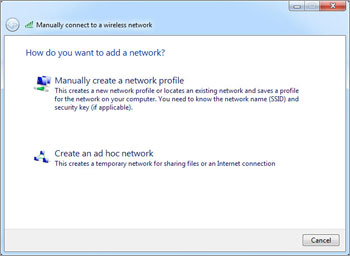
If you see your wireless network listed, right-click on its icon and click Properties. Check the option "Connect even if the network is not broadcasting its name (SSID)."
If you don't see your wireless network listed, click "Add" then select "Manually connect to a wireless network" and put your wireless information in.
Mac users: You can also "force-join" an SSID that has stopped broadcasting through a Mac's Airport Utility. Select to join "Other" and type in the name of the network and password.
Of course, you still want to find out why your SSID stopped broadcasting. Check to make sure broadcasting was not inadvertently disabled in the router's software, reboot the router, and check for any software updates.
Internet Connection Tips; The Wireless Network's Name/SSID Disappeared
The Router Setup Software Won't Detect the Router
 The Problem: The
instructions to your new router say that the software on the CD that
came with the router should automatically get your computer to detect
the new router, wirelessly. You've tried a couple of times and keep
getting a message that indicates the software cannot find the router.
The Problem: The
instructions to your new router say that the software on the CD that
came with the router should automatically get your computer to detect
the new router, wirelessly. You've tried a couple of times and keep
getting a message that indicates the software cannot find the router. Quick Fix: This is actually a common problem with newer routers on the market that have "automated setup." Sometimes the setup process just doesn't work. Here's how you can bypass the setup and go right into the router's management interface to setup your wireless network. Connect an Ethernet cable from your computer to one of the LAN ports of the router (you can also keep the router connected to the broadband modem). Go into your computer's network settings. In Windows 7, they are located in Control Panel|Network and Internet|Network Sharing Center|Change Adapter Settings.
Right-click and select Properties of Local Area Connection. Highlight Internet Protocol Version 4 (TCP/IP v4). In the TCP/IP v4 windows that opens, click the radio button, and select "Use the following IP address." Under "IP address" you type an address that matches the default IP address of your router, a string of numbers broken up by periods. You'll find this in the router's documentation. For instance, if the default IP of the router is "192.168.1.1" you should type in "192.168.1.2"—making the last number different prevent an IP address conflict with the router but places your computer and the router on the same network. Under "Subnet mask," type in "255.255.255.0"—this is the subnet mask for your typical home network, and for "Gateway" type in the default IP of the router—in this example it would be the "192.168.1.1" address.
You now have your computer on the same network as the router. You can now open a browser and enter the router's IP address. Just type the router number into your address bar, like this: http://192.168.1.1. You will be prompted to enter a username and password. This information is also available with your router's documentation. Once you are in the management interface, you can manually setup your wireless connection: the SSID, pass phrase, and security.
If you can't browse to the router's interface, you may have made a typo. Recheck your network settings under "TCP/IP v4" properties once more.
Internet Connection Tips; The Router Setup Software Won't Detect the Router
My New Router Won't Connect to the Internet
Tips for Troubleshooting Your Internet Connection
The Problem: You buy a new router. You disconnect the old router, connect the new one, and follow the manufacturer's instructions for setup. Even though you can see the new wireless network and can even connect your computer or device, you cannot browse the Internet.
Quick Fix: Unplug the network cable (or cables) and power from the broadband modem you received from your ISP including the coaxial or DSL connection, as well as all cables from the new router. Leave everything unplugged and disconnected for at least 30 seconds. Next, re-connect the coaxial cable, DSL, or FIOS connection to the broadband modem, making sure it's firmly in place and that the WAN/Internet light is on. Then, attach all cables back to your router (including the Ethernet cable from the broadband modem to the router's WAN port) and power the router back on. Make sure the Internet connection activity light is on. Doing these steps forces the broadband modem to flush any information it is holding onto from your previous router. Try browsing the Internet. If you still can't, go through the router setup instructions again, now that you have reset the broadband modem.
Internet Connection Tips; My New Router Won't Connect to the Internet
My Internet Connection Keeps Dropping
My Internet Connection Keeps Dropping
The Problem: You are happily surfing the Internet and every now and then the connection drops. Perhaps you see the light flicker down to nothing on your broadband cable modem and then suddenly all LEDs light up again.Quick Fix: This is a common issue, particularly for those with cable Internet service or FIOS. You wouldn’t believe how often this problem is caused by a degraded signal coming into the cable modem. If you use splitters, try replacing them. If you have several splitters on an inbound cable connection, say one coming into your home and another to break out the cable signal in your home entertainment system, check to see if they are -7dB splitters (printed on the outside of the splitter). Try replacing a -7dB splitter that your broadband modem is connected to with a -3.5 dB splitter, which may decrease signal loss. Also, if you happen to have three splitter and you are not using the third connection, try replacing it with a two-way splitter.
Internet Connection Tips; My Internet Connection Keeps Dropping
Subscribe to:
Posts (Atom)